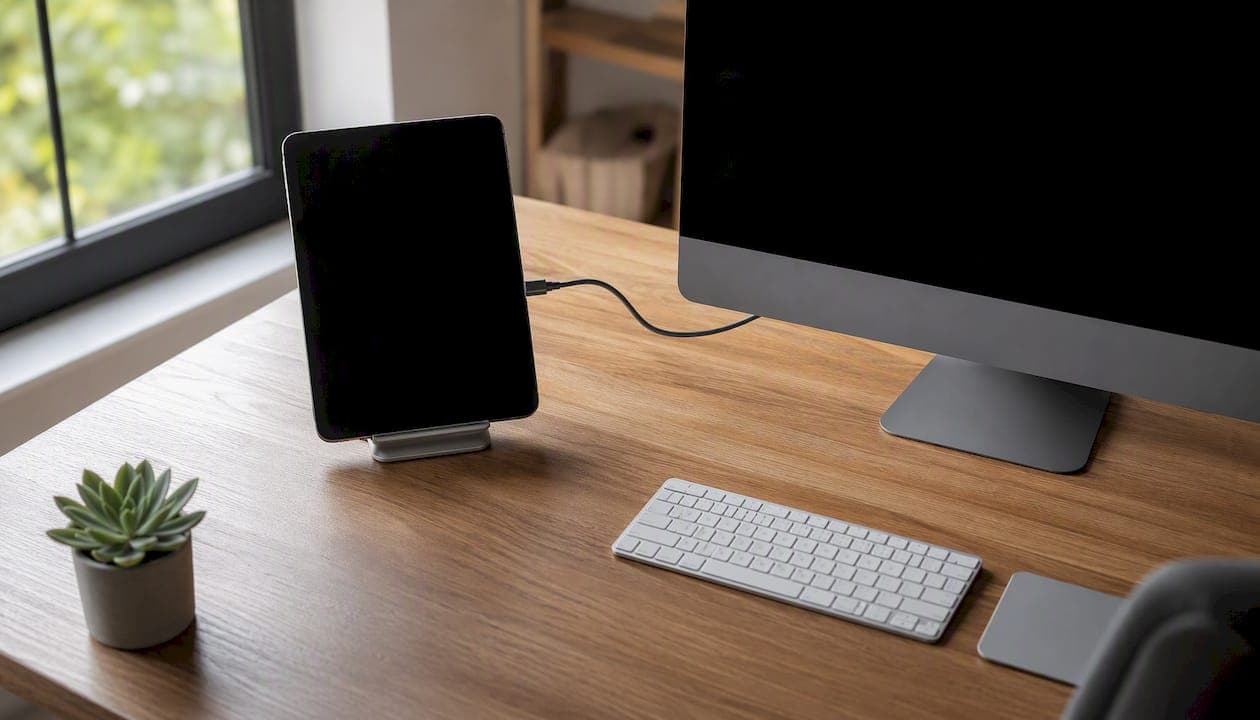
Yes, you can reliably use a tablet as a second monitor. For iPad and Mac users, Sidecar is the fastest path with zero extra cost. For Windows or cross-platform setups, a wired USB connection through a third-party app gives you the lowest latency and the most stable experience. Wireless works well for casual reference work but adds noticeable lag in congested Wi-Fi environments. Here is the short version:
- iPad + Mac: Use Sidecar (built-in, free) or Universal Control for a seamless Apple experience.
- Windows + iPad or Android: Use a wired USB app like Duet Display, Super Display, or Any Display for the best performance.
- Quick wireless option: spacedesk (free for Windows + Android) or Splashtop for cross-platform convenience.
- Budget/open-source: Deskreen works over your local network with no app required on the tablet.
The tradeoffs are real: wired setups feel snappier, wireless setups are more portable, and no tablet replaces a 27-inch monitor for full-day color work. But for a portable second screen on a budget, a tablet you already own is hard to beat.
Key Takeaways
Using a tablet as a second monitor works reliably when you match the right software to your platform and prioritize a wired USB connection for any session where lag would disrupt your work.
| Point | Details |
|---|---|
| Best method for iPad + Mac | Sidecar is free, built-in, and works wirelessly within a short range; use USB for longer sessions. |
| Best method for Windows | Wired USB apps like Duet Display, Super Display, or Any Display give the lowest latency. |
| Wireless trade-off | Wireless is convenient but adds lag; lower resolution to 1280×800 and 30 fps to reduce it. |
| Repurpose your old tablet | High-density tablet panels often outperform entry-level external monitors in sharpness. |
| Deskbound's recommended kit | A height-adjustable stand, a short USB-C data cable, and Sidecar or Duet Display cover most setups. |
Table of Contents
- How does a tablet actually work as a second display?
- How to set up Sidecar and Universal Control on iPad and Mac
- How to set up Windows and cross-platform tablet displays
- Wired vs wireless: which connection should you use?
- Which tablets work best as second monitors?
- How to fix lag, black screens, and scaling problems
- When a real external monitor is the better choice
- Deskbound's recommended kit for a reliable tablet second monitor
- The part most guides skip over
- Deskbound's curated picks for your tablet monitor setup
- Primary sources and further reading
- Sources
How does a tablet actually work as a second display?
Your operating system thinks in terms of physical displays. To use a tablet as a monitor, the software creates a virtual display adapter, a fake screen that the OS treats as real hardware. The tablet then streams or renders whatever that virtual display outputs.
Two fundamentally different approaches exist:
- Network streaming (wireless): The host PC encodes the virtual display as a video stream and sends it over Wi-Fi or USB to the tablet client app, which decodes and renders it. Encoding and decoding takes time, which is where lag comes from.
- Wired USB virtual display: Some apps use a direct USB connection to pass display data with far less encoding overhead. Any Display advertises USB latency under 5 ms using this method, a vendor-claimed figure that reflects the best-case wired scenario.
What causes lag and frame drops: Wi-Fi congestion, your host CPU's encoding speed, and the tablet's decoding capability all stack up. An older host PC running a high-resolution virtual display at 60 fps will stutter before a newer one does.
Touch and pen support depend entirely on the app. Some apps pass touch input back to the host OS as mouse events; others support full stylus pressure. Resolution and display scaling are set in the host OS display settings, not on the tablet itself, which matters when you're adjusting for a 10-inch screen sitting next to a 24-inch monitor.
How to set up Sidecar and Universal Control on iPad and Mac
Sidecar is Apple's built-in solution, and it's the most polished option available for iPad and Mac users. According to Apple's support documentation, Sidecar works wirelessly within a short range when both devices are signed into the same Apple Account, with a USB cable as a reliable fallback for longer sessions or weaker Wi-Fi.
Requirements checklist
- macOS Catalina (10.15) or later; macOS Ventura or later recommended
- iPadOS 13 or later
- Both devices signed into the same Apple ID
- Bluetooth and Wi-Fi enabled on both (for wireless); USB-C or Lightning cable for wired
- Handoff enabled in System Settings > General > AirPlay & Handoff
Macworld's step-by-step guide covers compatible model lists in detail and offers paid alternatives for older Macs and iPads that fall outside Sidecar's supported range.
Setting up Sidecar (numbered steps)
- Connect your iPad via USB or confirm both devices are on the same Wi-Fi network.
- On your Mac, open System Settings > Displays and click the + button (or use the Control Center menu bar icon and select "Mirror or Extend to iPad").
- Select your iPad from the list. It appears as an available display.
- Choose Use as Separate Display to extend your desktop rather than mirror it.
- Drag the iPad display to the correct position in the Displays arrangement panel.
- Use the Sidecar sidebar on your iPad to access modifier keys and the Touch Bar if your Mac has one.
Universal Control is a different feature: it lets one keyboard and mouse control multiple Apple devices side by side, including moving the cursor from your Mac to your iPad. It doesn't extend your Mac's display onto the iPad the same way Sidecar does. Think of Sidecar as a second monitor and Universal Control as a shared input device across separate screens.
Pro Tip: If Sidecar won't connect, the two most common fixes are signing out and back into your Apple ID on both devices, and toggling Handoff off and on in System Settings. If wireless range is the issue, plug in the USB cable — Sidecar over USB is noticeably more stable for long work sessions.
One important limit: Sidecar does not let you use iPad touch input to control macOS apps on the extended display. You can tap the Sidecar sidebar, but the iPad screen doesn't act as a touchscreen for the Mac's UI. For touch-driven workflows, a third-party app is the better path.
How to set up Windows and cross-platform tablet displays
For Windows users or anyone mixing platforms, third-party apps are the standard route. Each requires a host driver or server installed on your PC and a client app on the tablet. Pricing ranges from free and open-source to one-time purchases and subscriptions.
The main apps at a glance
Duet Display runs on Windows, macOS, iPadOS, and Android. It supports both USB and Wi-Fi connections, and the USB mode is genuinely low-latency. The base app is a one-time purchase; some features require a subscription tier. Touch and Apple Pencil support are included on iPad.
Super Display targets Android tablets specifically and focuses on USB connections for near-native latency. It's a paid app with a free trial, and it handles high-resolution Android displays well. A strong pick if you have a recent Android tablet and a Windows PC.
spacedesk is free for Windows hosts and Android or iOS clients. Installing the lightweight spacedesk driver on Windows and the viewer app on your tablet lets both devices discover each other automatically on the same Wi-Fi network. Set Windows to Extend in Display Settings and you have a usable second screen in under five minutes. The tradeoff is that wireless-only performance can feel soft on a busy network.
Splashtop is primarily a remote desktop tool, but it works as a second display through its Wired XDisplay feature. It's a solid option if you already pay for Splashtop for remote access and want to double up.
Deskreen is open-source and free. It streams your display to any device with a browser, so no client app installation is needed on the tablet. Performance is limited compared to dedicated apps, but for occasional reference use on a secondary screen, it's a zero-cost starting point.
Tab Display is available on Google Play and turns Android tablets into portable monitors for Mac and Windows. It's a lightweight option worth trying if you prefer a simple client-side install.
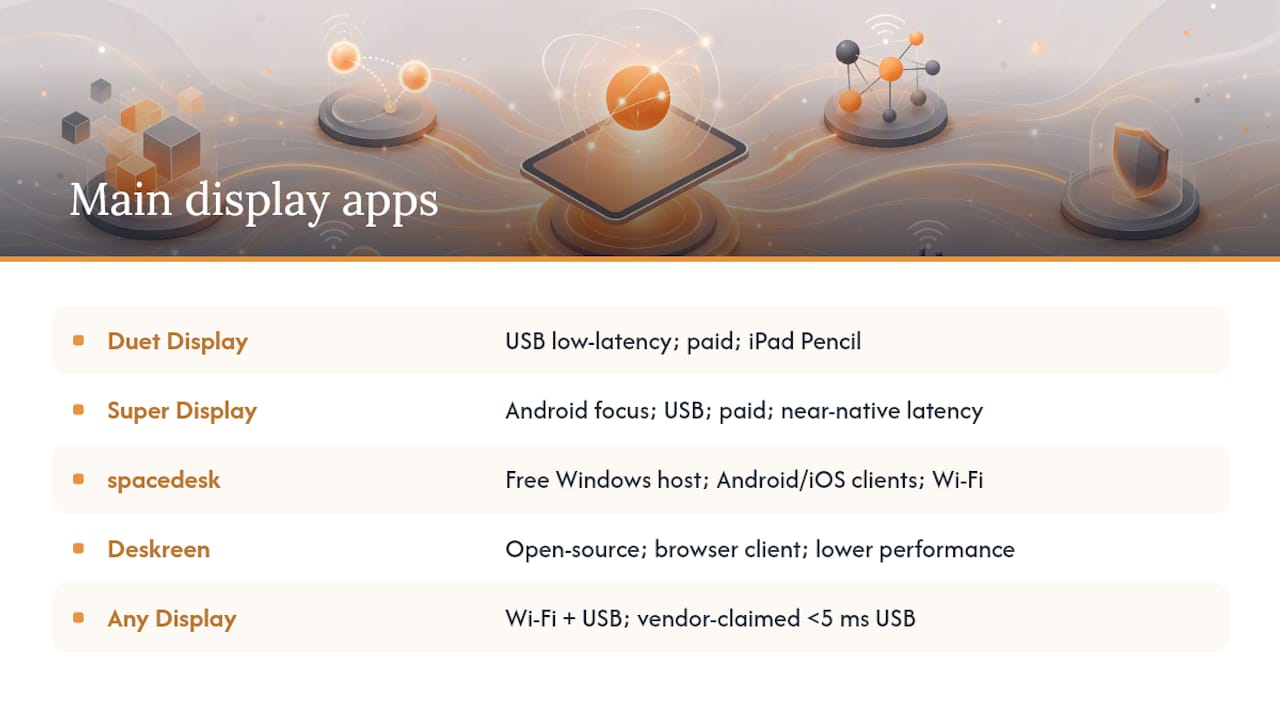
Any Display supports both Wi-Fi auto-discovery and USB, with vendor-claimed USB latency under 5 ms for wired virtual display connections. It's a newer entrant but worth testing if you want a clean interface and low-latency wired performance.
Common setup steps for most apps
- Download and install the host driver or server software on your Windows or Mac PC.
- Install the client app on your tablet from the App Store or Google Play.
- Connect both devices to the same Wi-Fi network, or plug in a USB cable.
- Launch the host software on your PC and the client on your tablet.
- In Windows Display Settings (or macOS System Settings > Displays), set the tablet display to Extend rather than Mirror.
- Drag the virtual display to the correct position relative to your main monitor.
Key tradeoffs by app:
- Cost: spacedesk and Deskreen are free; Duet Display, Super Display, and Any Display have paid tiers.
- Latency: Wired USB modes (Duet, Super Display, Any Display) beat wireless across the board.
- Touch/pen support: Duet Display and Super Display handle stylus input well; spacedesk and Deskreen offer basic touch-as-mouse only.
- Resource use: All virtual display drivers add some CPU load on the host. On older PCs, lowering the virtual display resolution from 1080p to 720p often eliminates stuttering.
Wired vs wireless: which connection should you use?
The honest answer is: wired whenever you can, wireless when portability matters more than precision.
Pro Tip: On wireless, drop the virtual display resolution to 1280×800 and the frame rate to 30 fps in your app's driver settings. Most reference and communication tasks look fine at those settings, and the perceived lag drops noticeably.
Wired USB connections pass display data with minimal encoding overhead. For long editing sessions or tightly timed tasks, wired USB virtual display modes are the most dependable; wireless is fine for reference material and casual multitasking. A USB-C cable between your laptop and tablet also charges the tablet simultaneously, which matters for all-day use.
Wireless setups shine when you're moving between rooms, working from a café, or setting up a temporary second screen without running a cable across your desk. The tradeoff is real: Wi-Fi congestion from other devices, neighboring networks, or a 2.4 GHz band instead of 5 GHz can push latency high enough to feel sluggish during scrolling or video playback.
Battery impact is another consideration. Wireless streaming keeps the tablet's screen and radio active continuously, draining the battery faster than a wired connection that also delivers power. For sessions longer than two hours, a wired setup or a powered USB hub is the more practical choice.
Which tablets work best as second monitors?
The good news: most tablets made in the last five to six years are capable enough. Experts consistently recommend repurposing older tablets because their high pixel-density displays often outperform entry-level external monitors in perceived sharpness, making them a cost-effective productivity upgrade before you spend money on new hardware.
What to look for in a tablet you already own
- Display resolution: A Retina-class iPad or a 2K Android panel at 10 inches looks sharper than a cheap 1080p monitor at 24 inches. Pixel density matters more than raw resolution here.
- USB-C port: Enables wired connections with compatible apps and charges simultaneously. Older Lightning iPads still work with Sidecar and some apps over USB, but USB-C is cleaner.
- CPU for decoding: Any iPad from the last five years handles decoding without breaking a sweat. Older Android tablets with weak processors may stutter on high-resolution wireless streams.
- Battery health: A tablet with degraded battery life will need to stay plugged in. That's fine for a desk setup, less ideal for portable use.
- Pen support: If you want to annotate or sketch on the second screen, an Apple Pencil-compatible iPad or a Samsung Galaxy Tab with S Pen support is the right pick.
When to buy instead of repurpose
If you don't already own a tablet, buying one specifically to use as a second monitor rarely makes financial sense compared to a purpose-built portable monitor. A 15-inch portable monitor with USB-C power delivery costs roughly the same as a mid-range Android tablet, offers a larger screen, and doesn't require any software setup. The repurpose case is strongest when you already have a capable tablet sitting underused.
Buying checklist if you do want a tablet for this purpose:
- Prioritize a 10–13 inch screen with at least 1920×1200 resolution.
- Confirm USB-C support and check whether the app you plan to use supports wired mode on that OS.
- Look for a model with a good stand ecosystem or a built-in kickstand.
- Check that the tablet's weight works for your desk setup — heavier tablets need a sturdier stand.
How to fix lag, black screens, and scaling problems
Most issues with tablet monitor setups fall into a short list of causes. Work through these in order before assuming the app or hardware is the problem.
Diagnostic checklist
- Confirm the host driver is running. On Windows, check the system tray for the app's server icon. If it's not there, relaunch the host software.
- Check that both devices are on the same network. Wireless discovery fails silently when one device is on a guest network or a different Wi-Fi band.
- Check your firewall. Windows Defender and third-party firewalls frequently block the UDP ports that spacedesk, Duet, and similar apps use. Add an exception for the host app.
- For USB connections: Make sure USB debugging is enabled on Android tablets (Developer Options > USB Debugging). On iPad, trust the connected computer when prompted.
- Confirm display mode is set to Extend, not Mirror. Always set the host OS display to Extend rather than Mirror when you want additional workspace. If the client app defaults to mirroring, toggle this in the host OS display settings.
Quick fixes for common problems
- Lag on wireless: Switch to USB, or lower the virtual display resolution and frame rate in the app's driver settings. Move closer to your router or switch to the 5 GHz band.
- Black screen on connect: Restart the host driver service, unplug and replug the USB cable, or toggle the display off and on in Display Settings.
- Scaling looks wrong: On Windows, right-click the tablet display in Display Settings, select Display Scaling, and set it to 100% or 125%. On macOS, hold Option while clicking Scaled in Displays to access all resolution options.
- App crashes on older PC: Lower the virtual display resolution or frame rate within the app's driver settings. Third-party monitor apps can be resource-intensive on older hosts, and reducing these settings is the most reliable fix.
When a real external monitor is the better choice
A tablet as a second display is a practical workaround, not a full replacement for a dedicated monitor. Knowing where the limits are saves you frustration.
- Screen size: Even a 13-inch iPad is small for side-by-side document work or multi-window layouts. A 24-inch or 27-inch monitor gives you meaningfully more usable space.
- Color accuracy: Tablets have good displays, but they're not factory-calibrated for color-critical work. If you're editing photos or video professionally, a monitor with a Delta-E rating and hardware calibration support is the right tool.
- Refresh rate: Most tablets top out at 60 Hz for display output through these apps, even if the panel itself supports higher rates. For motion-heavy work or gaming, a 144 Hz monitor is a different category entirely.
- Ergonomics over long sessions: A tablet on a stand is stable enough for a few hours, but a monitor on an adjustable arm gives you precise height, tilt, and distance control that a tablet stand rarely matches.
The practical decision guideline: if you need a second screen for more than four hours a day, or if your work involves color grading, video editing, or large spreadsheets, a dedicated monitor is worth the investment. For travel, temporary setups, or supplementing a laptop with a reference screen, a tablet you already own is a genuinely useful solution.
Deskbound's recommended kit for a reliable tablet second monitor
For most home office users, the most reliable setup is a wired USB connection using a capable app, a stable stand, and a short, high-quality cable. Here's what Deskbound recommends:
- App choice (Windows): Duet Display or Any Display for wired USB mode. Both offer low latency and solid touch support. spacedesk is the free starting point if you want to test before committing.
- App choice (Mac + iPad): Sidecar, built-in and free. Use a USB cable for sessions longer than an hour.
- Stand: A height-adjustable tablet stand with a wide, weighted base. A firm, height-adjustable stand and a short, high-quality USB-C cable frequently solve more practical issues than chasing the "best" app — stability and cable quality reduce disconnects and wobble.
- Cable: A USB-C to USB-C cable rated for data (not just charging). A 3-foot cable keeps the desk tidy; longer cables can introduce signal degradation with some adapters.
- Hub (if needed): A compact USB-C hub if your laptop has limited ports. Look for one with a dedicated data port rather than a shared power/data port.
Setup checklist
- Install the host driver on your PC or confirm Sidecar is available on your Mac.
- Mount the tablet on the stand at eye level, slightly to the side of your primary monitor.
- Connect via USB cable before trying wireless.
- Set the display to Extend in your OS display settings.
- Adjust display scaling to match your tablet's pixel density.
- Route the cable through a cable clip or channel to keep the desk clear.
Pro Tip: Position the tablet stand so the top of the tablet screen sits at roughly the same height as the top of your primary monitor. This reduces neck movement between screens and makes the setup feel more like a real dual-monitor arrangement.
For ergonomics and cable management tips that keep your desk clean when running a tablet alongside your main setup, Deskbound covers both in detail.
The part most guides skip over
There's a tendency in tablet-as-monitor guides to treat the software as the whole story. Pick the right app, follow the steps, done. But the physical setup is where most people quietly give up after a week.
A tablet propped against a book wobbles every time you tap the screen. A cable draped across your keyboard becomes an annoyance by day two. These aren't software problems, and no app update fixes them. The readers who stick with a tablet second monitor long-term are almost always the ones who spent ten minutes getting the stand and cable routing right before they started working.
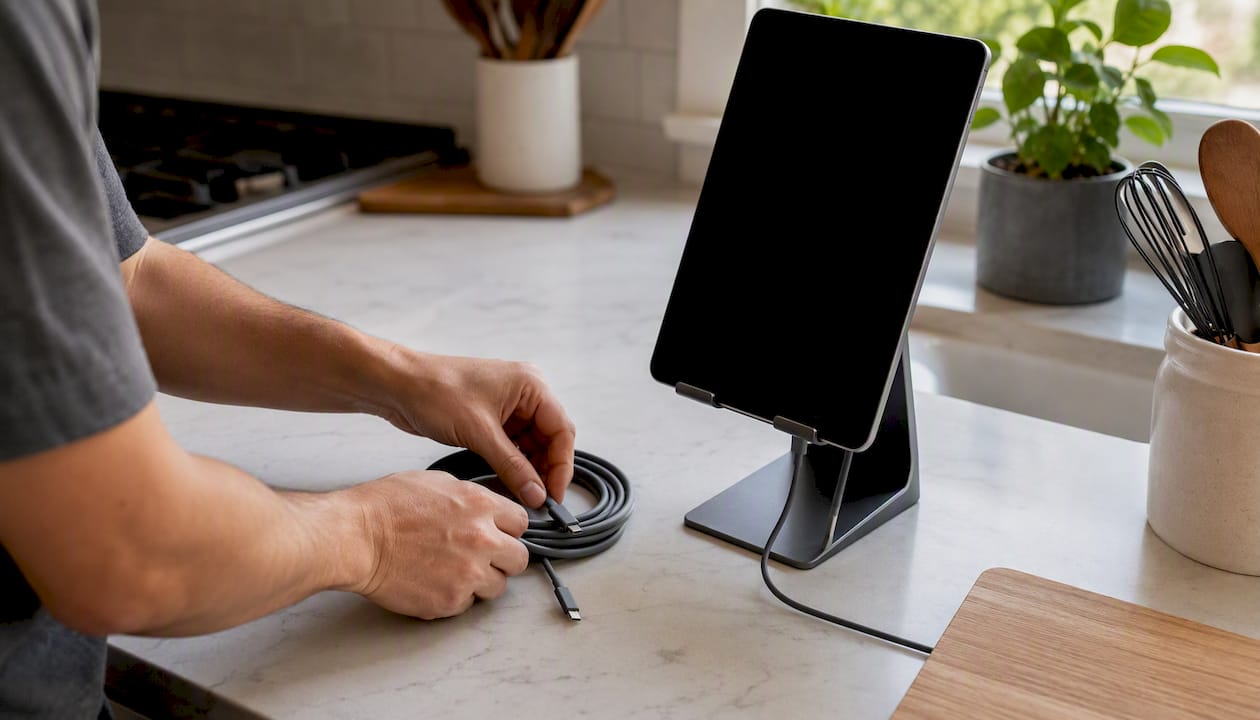
The other thing worth saying plainly: wireless is tempting because it looks cleaner, but the latency difference between a good wired connection and a wireless one is noticeable during real work, not just in benchmarks. If your desk has a USB port within reach, use it. Save wireless for the coffee shop.
Deskbound's curated picks for your tablet monitor setup
Setting up a tablet as a second display is one of the more satisfying home office upgrades you can make without spending much. The software is often free or low-cost, and the hardware you need beyond the tablet itself is minimal. What makes the difference is getting the physical side right: a stand that holds the tablet steady at eye level, a cable that stays connected, and a hub if your laptop is running short on ports.
Deskbound has put together practical picks for exactly this kind of setup, focused on items that solve real problems rather than just look good on a desk. You'll find tablet stands, cable management solutions, and compact hubs among the home office upgrades Deskbound recommends for remote workers. For a broader look at what's worth adding to your workspace, the Amazon home office finds roundup covers the hardware side in detail.
Disclosure: Deskbound earns a commission on purchases made through affiliate links at no extra cost to you. Recommendations are based on practical usefulness, not commission rates.
Browse the full kit and find your next desk upgrade at Deskbound.
Primary sources and further reading
- Use Sidecar with your Mac and iPad — Apple Support: Apple's official page covering Sidecar requirements, compatible models, and wireless range limits. Start here for iPad + Mac setups.
- How to use an iPad as a second monitor — Macworld: Step-by-step instructions for Sidecar and paid alternatives for older Apple hardware that doesn't support Sidecar.
- Yes, You Can Use Your iPad As a Second Monitor Without Sidecar — PCMag: Covers third-party app options for Windows and cross-platform setups, including stand and ergonomics guidance.
- I turned my Android tablet into a second monitor — Android Authority: First-hand walkthrough of the spacedesk setup on Windows with an Android tablet, including Wi-Fi discovery steps.
- Yes — you can turn your old iPad into a dedicated PC monitor — MakeUseOf: Practical advice on repurposing older iPads, lowering resolution for older hosts, and setting display mode to Extend.
- Any Display — Your Screen, Extended: Vendor documentation for Any Display, covering Wi-Fi auto-discovery, USB connection, and wired latency specifications.
Sources
- Use Sidecar with your Mac and iPad - Apple Support
- Yes, You Can Use Your iPad As a Second Monitor Without Sidecar | PCMag
- I turned my Android tablet into a second monitor — and I can't go back | Android Authority
- Yes — you can turn your old iPad into a dedicated PC monitor | MakeUseOf
- How to use an iPad as a second monitor | Macworld
- Any Display — Your Screen, Extended.